How to Export YouTube Videos in Highest Quality
By Truecode Cloud Team · Published · 12 min read
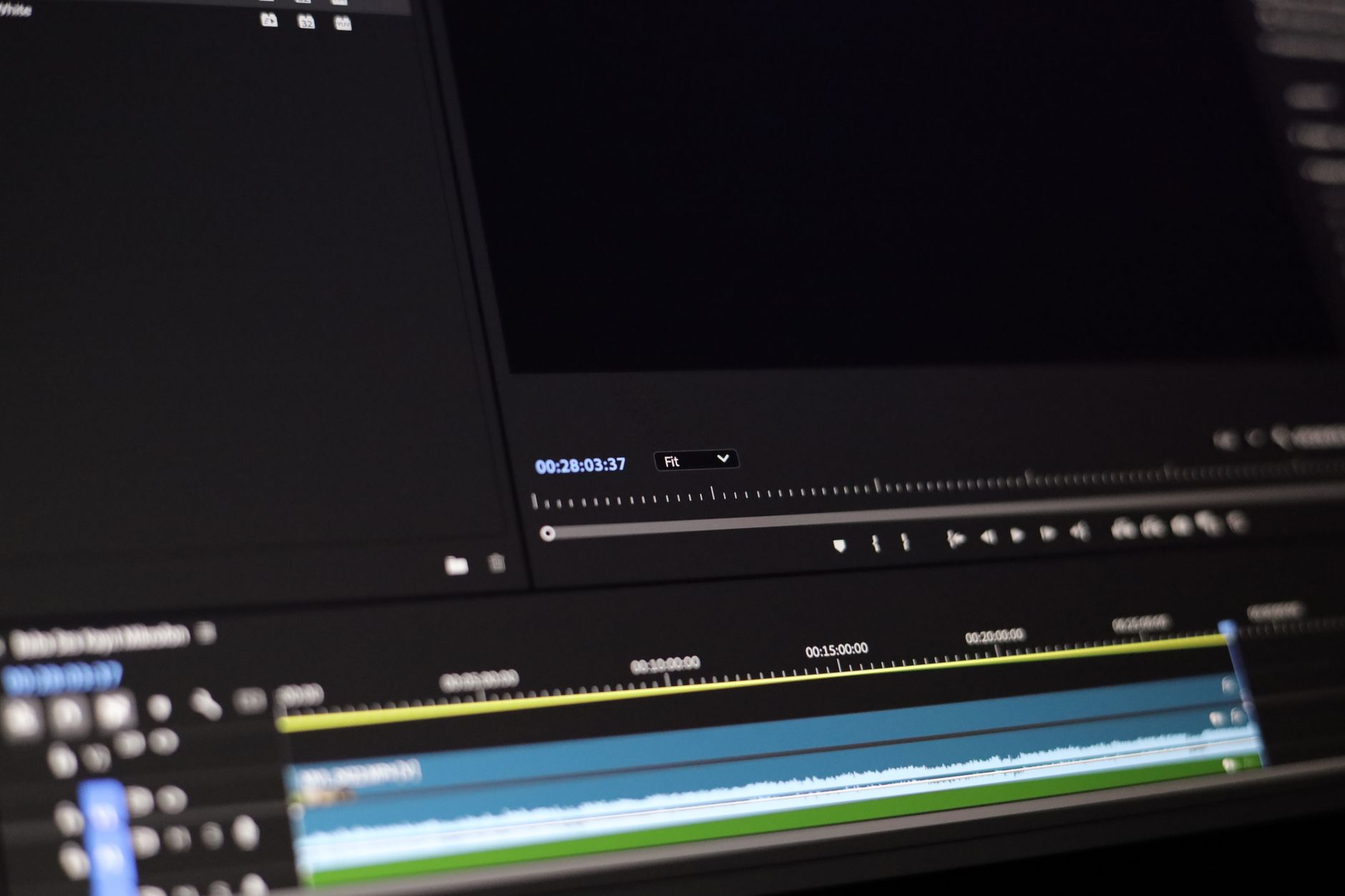
You finished the edit and the timeline sits at 1080p or 4K. Now you need to move that file to YouTube without losing detail. The process called how to export youtube videos in highest quality starts with matching your timeline numbers, picking H.264 inside an MP4 container, and choosing a bitrate high enough for the resolution. The steps below show the exact fields to set in common editors. You will also see the three problems that appear most often and how to fix them before the upload begins.
Key takeaways
- Match the export resolution and frame rate to the numbers already set in your timeline.
- Select H.264 as the codec and MP4 as the container for the upload.
- Enter a bitrate at least as high as the values YouTube recommends for that resolution.
- Save the file to an internal drive, then upload it without running any extra compression step.
- Raise the bitrate first if the uploaded file looks soft after YouTube finishes processing.
What you need
You need an editing program that supports high resolution timelines and custom export presets. Adobe Premiere Pro, Apple Final Cut Pro, or Blackmagic Design DaVinci Resolve all work for this. Each program lets you keep the original frame size and frame rate of your footage instead of forcing a lower setting during output. Open your project and confirm the sequence settings match the camera files you shot. For example, if your clips came from a camera recording 3840 by 2160 at 30 frames per second, set the timeline to the same numbers before you begin the export process.
Your source footage must stay in its native resolution and codec. Downscaling inside the edit and then trying to restore quality later does not produce the same result as exporting the full size file. Keep audio tracks at 48 kilohertz sample rate and at least 24 bit depth so the final file does not introduce extra compression artifacts. Gather any external audio, graphics, or color corrections into the timeline so nothing is missing when you reach the export window.
You also need enough free drive space for the rendered file. A 10 minute 4K clip exported at high bitrate can reach several gigabytes. Have a second drive ready if your main editing drive is nearly full. Finally, know the target platform specifications from YouTube creator documentation. These list recommended bitrates for 1080p, 1440p, and 4K files and note that menu names can change between software versions. With the project settings already aligned to your footage, the export steps that follow will simply preserve what you already have.
Step 1: Open export settings in your editor
Most video editors place the export command under the File menu at the top of the screen. Click File, then scan downward for Export, Export Media, or Render. In some programs the label reads Render As or Share instead. Menu names can change between versions of the software, so read every entry in the File list before you give up. If nothing matches, check the Project menu or the top bar in macOS builds, because a few timeline tools move the command there. Keyboard shortcuts often skip the menu. Control-M opens the export window in Adobe Premiere Pro, while Command-M works on a Mac. DaVinci Resolve uses Control-Shift-E on Windows. Learn the shortcut for your editor once and you can reach the settings panel without hunting each time. Before you click, make the timeline active by clicking inside it. Many editors gray out the export option until a sequence or clip is selected. This guard prevents you from accidentally rendering an empty project or the wrong cut. The export window is the only place where you later match frame rate, choose the H.264 codec, and set bitrate values that match YouTube recommendations. Opening it now lets you see every available control before you spend time on a full render. Some editors also show an Export button on the toolbar or in a side panel. Click it and pick the custom or advanced route rather than any one-click preset, because presets hide the exact settings you need for highest quality. Once the window appears, leave it open while you complete the remaining steps.

Step 2: Match project resolution and frame rate
Open the export window in your video editor and find the fields for output resolution and frame rate. Set both to match the exact numbers already used in your timeline or sequence settings. Most editors display these values in the project panel or under sequence properties, so check there first if you do not remember them. For example, a common timeline uses 1920 pixels wide by 1080 pixels tall at 30 frames per second. Type those same figures into the export boxes rather than choosing a preset that looks close.
If your timeline runs at 3840 by 2160 pixels and 60 frames per second, enter those values instead. This match tells YouTube the file already sits at the intended size and speed, so the platform skips an extra round of compression that would otherwise lower detail. YouTube still processes uploads, yet the quality drop stays smaller when the incoming file already aligns with the timeline.
Some editors label the section as video settings or output format. Menu names can change between versions, so look for any box that lists width, height, or frames per second. After you enter the numbers, confirm the timeline itself has not been altered since you started editing. A quick check of the sequence settings prevents a mismatch that only appears at export time. Once both values line up, move to the next export options without changing them again.
Step 3: Choose H.264 codec and container
In the export window look for the codec or format selector. Pick H.264 for the video codec and set the container or file format to MP4. These two choices line up with the way YouTube handles uploads right now, so the platform can read the file directly instead of running an extra conversion pass that often softens fine detail or shifts colors.

H.264, also called AVC, compresses the picture efficiently while keeping most of the original sharpness when you feed it a high bitrate. The MP4 wrapper simply packages that video stream together with the audio track so the whole file stays small enough to upload quickly yet still carries the full resolution and frame rate you already matched in the previous step.
Menu labels differ across programs and even between versions of the same program, so scan the dialog for anything labeled Codec, Video Format, or Output Format. In some editors the container choice sits at the top and the codec sits below it; in others they appear together in one dropdown. Once both are set, the export preset will usually show a suggested file extension of .mp4.
If you see a choice for profile or level, leave them at the defaults unless your project uses very high resolutions that require Main or High profile. Avoid switching to other codecs such as HEVC or ProRes at this stage. Those can produce larger files that still get re-encoded by YouTube, which adds another layer of compression and can lower the final quality you see on the site.
After you confirm H.264 and MP4, move on to the bitrate controls that come next.
Step 4: Set video bitrate for target quality
In most editors the bitrate field sits under the video codec options once you have picked H.264. Enter a target value that matches or slightly exceeds the numbers YouTube uses internally. For 1080p at 30 frames per second, 35 Mbps works well for most footage. If the clip contains fast motion or fine detail such as text on screen, raise the number to 45 Mbps. At 1080p 60 frames per second the same logic pushes the range to 40 to 55 Mbps.
Higher settings protect against the second compression pass YouTube performs after upload. When the source file already carries enough data, the platform has less need to discard information, so edges stay sharper and color banding stays lower. The trade-off appears in file size. A five-minute 1080p clip at 40 Mbps occupies roughly 1.5 GB, which still uploads in minutes on a typical connection.
If your project runs at 4K, move the target to 60 to 80 Mbps. Keep the rate-control mode on VBR 2-pass when the option exists; it spends extra encode time to hit the chosen average more accurately than single-pass CBR. Leave the maximum bitrate field blank or set it no more than 50 percent above the target so the encoder does not spike unexpectedly.
Check the final file size before you upload. If the result exceeds what your storage or upload speed can handle comfortably, drop the bitrate in 5 Mbps steps rather than guessing. The exact label for the bitrate box can shift between software versions, so scan the video tab or advanced panel for any field that accepts a number followed by Mbps.
Step 5: Export the file and upload
Once the settings from the earlier steps are in place, open the export or render window in your editor. Pick a folder on your internal hard drive as the save location, then give the file a short descriptive name that includes the project title and the current date. Start the render. The editor writes the finished H.264 file straight to disk without any extra passes or cloud services.
When the file finishes and appears in the folder, open YouTube Studio in a browser and sign in. Click the Create button at the top right, choose Upload videos, and either drag the rendered file into the box or click the select button to locate it. Let the upload run to completion. YouTube will still re-encode the video for its own delivery formats, but the source file you supply already carries the resolution, frame rate, and bitrate you set, so quality loss stays minimal.
Menu names can change between versions, so look for the main export command rather than memorizing exact wording. Skip any option that offers to upload directly from the editor or to convert the file afterward. Those routes run the video through an unplanned second encode and almost always drop detail. If your editor offers a “upload to YouTube” preset, ignore it and stick with the local render followed by the manual Studio upload. This two-part sequence keeps the file under your control until the moment it reaches the platform.
Troubleshooting common export problems
If your export looks blurry even after matching resolution and frame rate in the project settings, raise the video bitrate in the codec panel. For 1080p footage at 30 frames per second, start at 15 Mbps with the H.264 encoder and test a short clip. If the result still softens after YouTube processes it, move to 20 Mbps or switch the rate control to variable bit rate with a higher peak. Check that the source clips themselves were not downscaled before import, since that loss stays in the final file.
Oversized files often appear when the bitrate sits too high for the target length. Open the same bitrate field used in the export step and lower the target to 10 Mbps for 1080p while keeping the container as MP4. Enable two-pass encoding if the software offers it; the second pass trims data in simple scenes without adding visible artifacts. You can also drop the audio bitrate to 256 kbps AAC if the track contains no music that needs full fidelity. Test the new file size on a one-minute segment before running the full render.
Audio that drifts out of sync usually stems from mismatched frame rates or sample rates between project and export. Return to the codec settings and confirm the audio sample rate is set to 48 kHz, then re-export a 30-second test section that includes dialogue or music hits. If drift remains, render the video and audio tracks separately in the editor, import both into a fresh timeline at the original frame rate, and export again. Menu labels for these options differ across software versions, so look for any field labeled sample rate or audio codec rather than relying on a fixed name.
The bottom line
Run the export with the settings listed, check the file size and playback on your computer, then upload. YouTube will still re-encode the file, so keep the source bitrate a little above the minimum to leave headroom. If the result still looks soft after the first upload, open the project again and raise the bitrate by 2 or 3 megabits before you export a second time. Menu names differ between editor versions, so scan the File menu for Export or Render Media and look for the codec panel once the window opens. Test one short clip first to confirm the numbers work on your system.
Frequently asked questions
What bitrate should I use for 4K YouTube uploads?
Start with 35 to 45 megabits per second for 4K at 24 or 30 frames. Use 50 to 60 megabits if your footage contains fast motion or fine detail. These numbers sit above YouTube minimums and give the encoder room when it re-processes the file. Enter the value in the bitrate field after you select H.264. Test a short section first and check the result on a 4K display before you commit to the full export.
Does YouTube re-encode H.264 files?
Yes. YouTube always converts the uploaded file to its own set of streams, even when the file already uses H.264 and MP4. The re-encode can soften fine detail if the source bitrate sits too low. Keep your export bitrate a few megabits above the numbers YouTube lists for your resolution. This leaves headroom so the final streams retain sharpness after the conversion finishes.
How do I stop my exported video from looking soft after upload?
Raise the video bitrate in the H.264 settings until the file size grows enough to protect detail. Match resolution and frame rate exactly to the timeline before you export. Avoid any extra compression pass after the render finishes. Upload the file directly and let YouTube complete its processing before you judge sharpness. If the result still looks soft, export again with a higher bitrate and test on the same footage.
Can I export in VP9 instead of H.264 for better quality?
You can, but YouTube still re-encodes the file, so the gain stays small for most uploads. H.264 remains the safer choice because every editor supports it and the files stay compatible. If your editor offers VP9 and you want to test it, set the same resolution, frame rate, and a comparable bitrate. Upload both versions once and compare the final streams before you change your normal workflow.
Why does my video file size become too large for upload?
The bitrate you entered may sit higher than needed for the length of the video. Lower the target bitrate in small steps until the file fits your upload limit while still looking sharp. You can also shorten the exported clip or split a long project into separate files. Check that no other compression settings are active in the export window before you render again.
Your first video is free.
Turn an idea into a finished video, image or ad with Truecode Cloud. We write the script, record the voice-over and render it, free.
Start free